 DocRoundup
DOCROUNDUP GUIDE
How templates work
Save individual requirements or a whole checklist, then reuse them in a new client request. Each request keeps its own copy, so later changes to your library do not change existing requests.
Go to the steps ↓Choose what you want to reuse
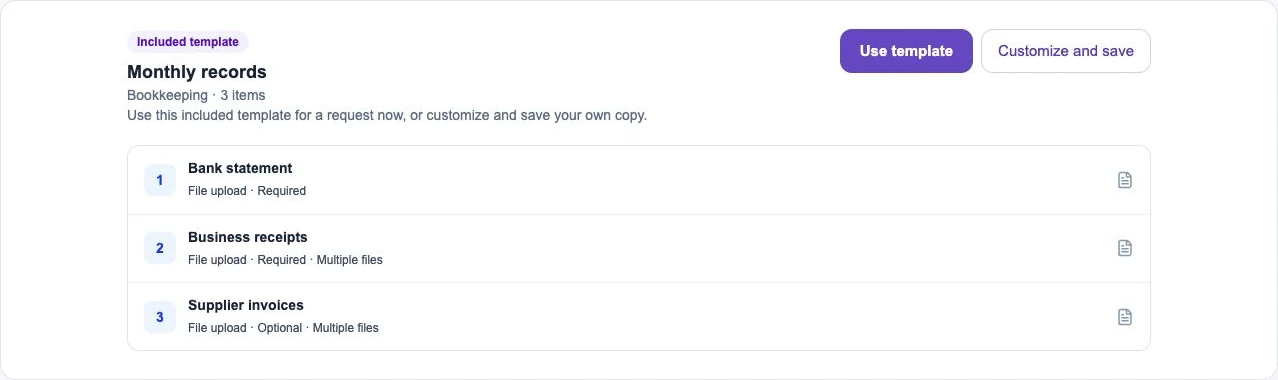
Save a requirement when you often ask for the same document or answer. Save a template when you repeatedly use a whole checklist, such as a monthly bookkeeping request.
- Saved requirement
- One reusable document or question.
- Template
- A whole reusable checklist.
- Created request
- Its own copy, independent of later template edits.
Start a request from your checklist
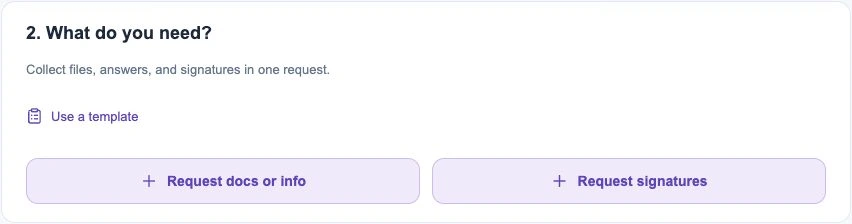
Create a new request, choose the client, and choose Use a template. Review the checklist. Choose Request docs or info for uploads or questions, or Request signatures for a PDF to sign. Then review and send the request.
- Create a new request and choose the client.
- Choose Use a template and select your checklist.
- Review the items, instructions, period and due date. Use Request docs or info or Request signatures to add anything else.
- Send the request when everything is ready.
Keep each client’s request independent
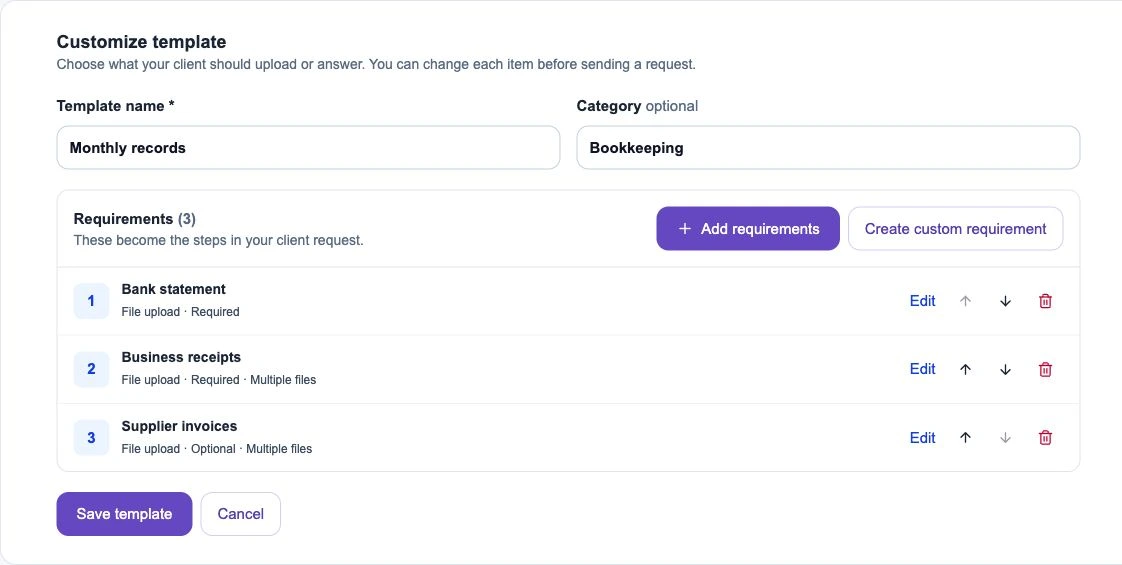
A request takes its own copy of the checklist. Later template edits affect the template, not requests already created from it. Templates contain requirements and instructions, not clients’ uploaded files or answers.
Keep the library tidy
Use Saved requirements for individual items and Templates for complete checklists. Delete material you no longer reuse from its details. Existing requests retain their copies.