 DocRoundup
DOCROUNDUP GUIDE
How signature requests work
Add a PDF, choose who signs and in what order, place their fields, and send their invitations. Follow their progress, then download the completed PDF and separate signing record when the files are ready.
Go to the steps ↓1. Choose the signing order
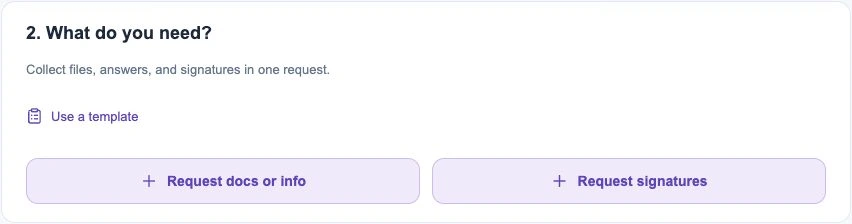
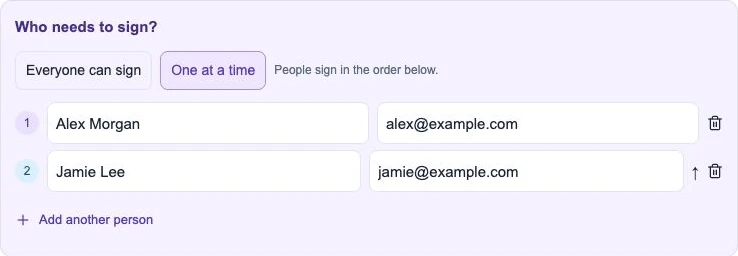
Choose Request signatures, upload your PDF and enter the people who need to sign. Everyone can sign lets them sign independently. One at a time follows the order shown in the list.
2. Place the signing fields
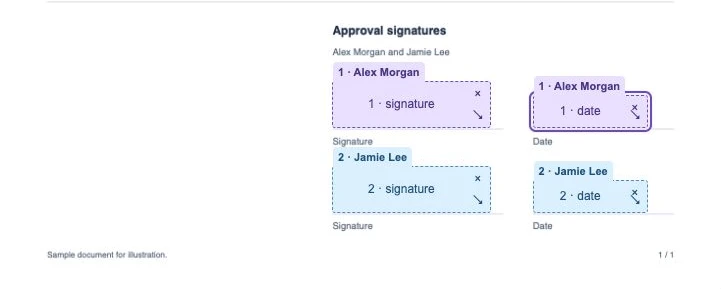
Choose Signature, Initials, Date, Full name, Text or Checkbox. Place each field where it belongs on the PDF and assign it to the correct person. Signature and Initials mark where to sign; Date records the signing date, and Full name uses the signer’s name. Text collects a written answer. Checkbox shows its label beside the box and can require a check. Select a placed field to edit its label and settings beside it. Keep the tool selected to place the same field again; press Escape to move fields. Check the assignments, then choose Send for signature. Invitations go immediately to the people whose turn it is to sign.
3. Send the signing invitation
Send for signature sends invitations to the people whose turn it is to sign. Open People signing to check each invitation. If it was not sent or failed, use Send invitation to try again, or copy the personal signing link to share it yourself. Email disabled locally means no real email is sent. Each person must use their own invitation.
4. Client verification
In Settings → Business settings, the owner can remember a client’s verified email on the same browser for seven days (recommended), require a code for each new invitation, or turn codes off. Without codes, anyone with a valid invitation link can access its request or signing document. Expired or replaced links do not regain access. This does not change staff login.
5. Follow progress
The request shows which signing documents are still pending. Open the document preview or signer details to see its progress. A partially signed document is not a completed request item.
6. When everyone has signed
When completion emails are enabled in Settings → Notifications & reminders, every signer and the request sender receive one final notice with access to the completed PDF and signing record. Emails wait until all signers finish and the final files are ready.
7. Find the completed files
After all required signers finish and the completed files are ready, preview or download the completed PDF. Download the separate signing record when you need the supporting history. For questions about the document itself, contact the business that requested it.